


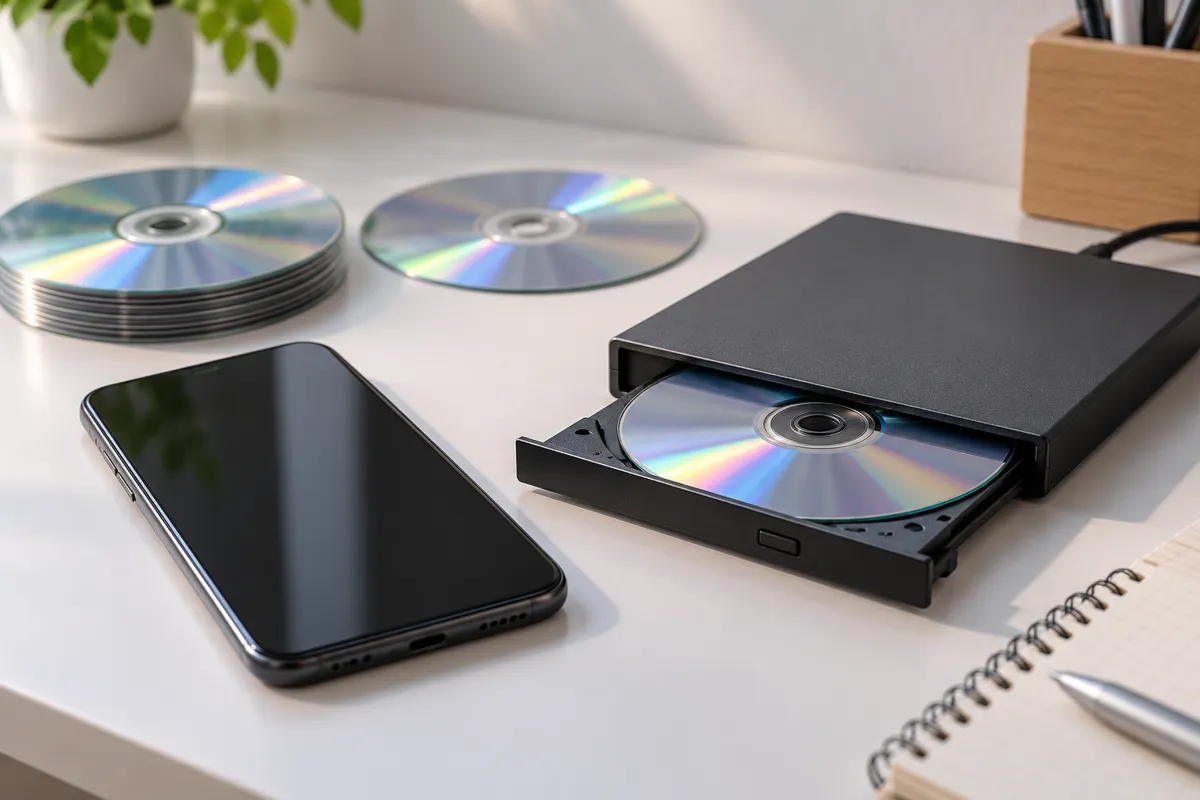
CDiPhone is not a product name established by the Apple support sources reviewed for this guide. If you encountered the term in an article or search result, avoid assuming it describes an official phone with a built-in CD player. A more practical interpretation of the question is how to bring music from a compact disc into a digital library and, where supported, onto an iPhone.
That task involves separate stages: reading the disc on a computer, organizing the resulting music and choosing a supported transfer method. This guide explains the workflow using Apple’s documentation. The AI-generated images are conceptual illustrations of separate devices, not photographs of a CDiPhone product.
Separate the name from the task
An unusual technology keyword can combine familiar words without identifying a real model. Before evaluating a claimed device, look for an official product page, a model number and documentation that describes its features. Repeated blog descriptions do not substitute for those sources.
If your actual goal is to listen to music from discs you already have, you do not need a hypothetical hybrid device. You need a computer capable of reading the disc, suitable music software and a compatible way to make the imported tracks available on the phone. Only import material you are permitted to copy.
| Stage | What you need to establish | Useful check |
|---|---|---|
| Read the disc | A compatible optical drive and computer | Does the computer recognize the music CD? |
| Import tracks | Supported music software and chosen settings | Do the selected tracks play correctly? |
| Organize files | Accurate album and track information | Can you find the album reliably? |
| Transfer music | A supported connection or library method | What will be added or replaced? |
| Verify playback | The intended tracks on the phone | Can you play the beginning and end? |
Importing a music CD on a Mac
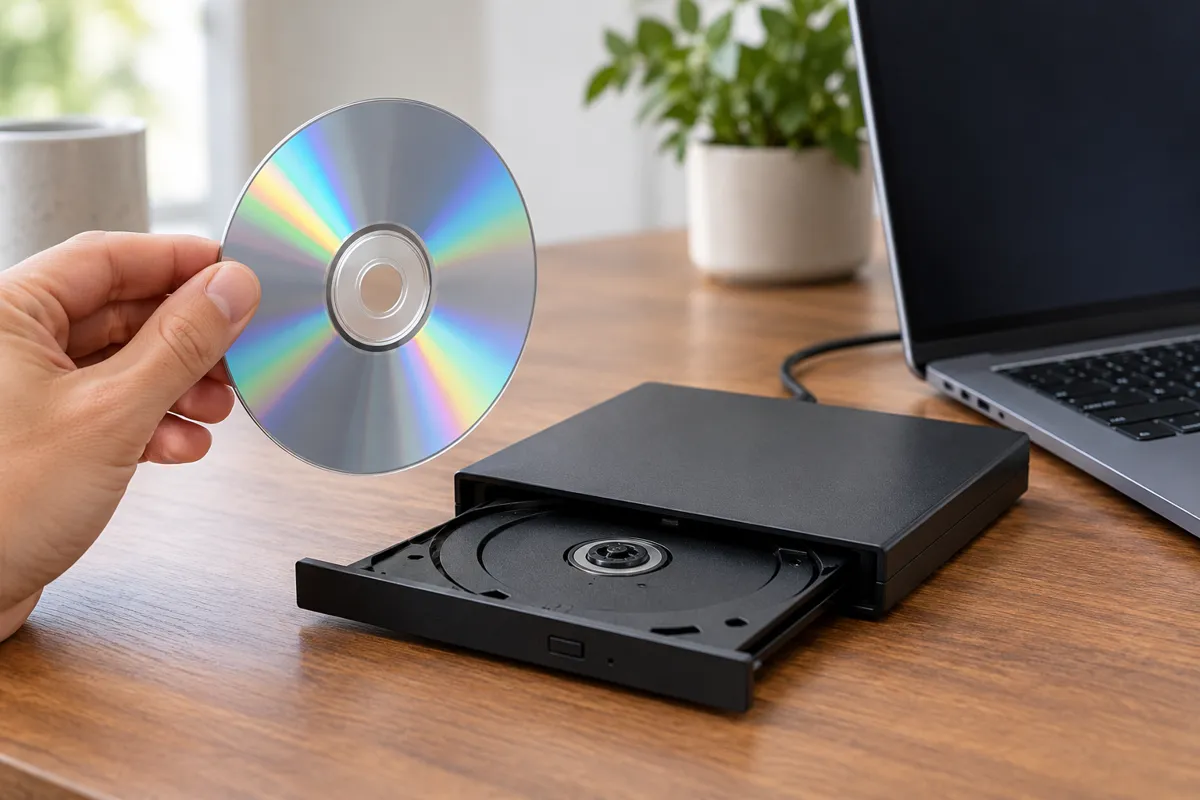
Apple’s Music guide for importing CDs describes inserting a disc in the computer’s drive or a connected external drive, then using Music to import the desired tracks. You can import the whole CD or select tracks. Import settings are available through the application’s settings, and Apple’s guide describes AAC as the default encoding format.
If track information is not retrieved, generic track names may appear. Check the album details before building a large collection. Apple’s instructions also discuss error correction for imports with audible problems. Consult the current guide for the controls in your version rather than assuming every screenshot online matches your installation.
This is a computer-based import process. An external optical drive beside a phone in an illustration does not establish that plugging it directly into the phone will perform the same task.
Test one album before processing a collection
Start with one disc that you can recognize easily. Make a note of the album title and the tracks you intend to import. After the import, play a sample from the beginning, middle and end of the album. This small test can reveal naming mistakes, missing tracks or playback problems before you repeat the workflow many times.
Keep the first attempt manageable. Changing several settings at once makes it harder to identify the cause of an unexpected result. If playback sounds wrong, compare the imported track with the source and check the software’s documented troubleshooting options. Avoid declaring a disc damaged solely because one import attempt failed.
Decide how you want to name compilations, multi-disc releases and albums with several credited artists. A consistent convention makes later browsing easier. You can keep a simple checklist of completed discs without turning the process into a complicated catalogue project.
Understand the Finder sync warning
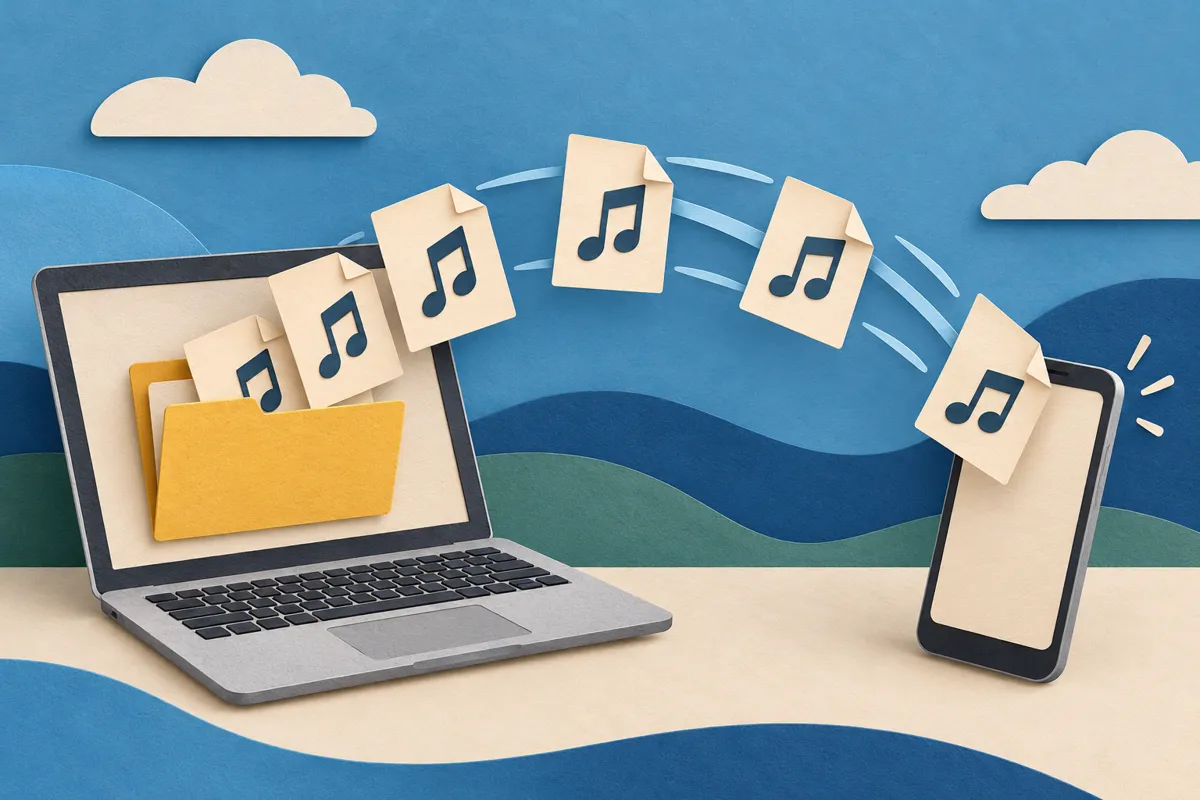
Apple’s Finder syncing instructions describe connecting an iPhone to a Mac, selecting the device and choosing the content to sync. The guide applies to macOS Catalina or later and explains the relevant music-selection controls.
Pay particular attention to any “Erase and Sync” message. Apple warns that proceeding can replace the selected type of content on the device with content from that computer. Read the prompt before confirming and make sure you understand which library is involved. A transfer instruction is incomplete if it mentions the buttons but leaves out the replacement warning.
Check your existing phone content and retain copies of music files you want to keep. A small test transfer is easier to inspect than a full-library change. If the displayed prompt does not match your expectations, stop and consult the relevant Apple instructions.
Keep local files and library services distinct
Apple’s overview of adding music describes several ways music can enter a library, including importing from CDs and using library services. These are different workflows. Availability, account requirements and settings should be checked for the method you intend to use.
Do not assume that a song visible on one device is already stored locally on another. For your own check, open the intended album on the phone and confirm how it is available. If offline listening matters, verify that behavior before relying on it during a journey without a connection.
Likewise, a playlist is an organizational aid, not a replacement for keeping track of the underlying music files. Record where your imported library is stored and include it in your normal backup planning.
Evaluate playback equipment separately
Transferring music and choosing a speaker are separate decisions. A successful import does not demonstrate the quality or compatibility of an accessory, and a speaker’s features do not determine how a CD is read. Check the connection method and supported device information for the equipment you actually own.
Our iProwess speaker guide discusses the kinds of product details worth checking. Keeping those questions separate makes it easier to identify whether a problem concerns the file, the transfer, the phone or the playback device.
When researching unfamiliar technology names, the source-checking approach in our WhatsOnTech reading guide can also help. Look for documentation that supports the exact feature being claimed.
Frequently asked questions
Is CDiPhone confirmed as an official Apple model? The Apple documentation reviewed here does not establish that product name. Treat claims about a dedicated device as unverified unless supported by an official product source.
Can I import a CD using a Mac? Apple’s Music documentation describes importing from a compatible optical drive. Check the guide for your software version and hardware setup.
Will syncing always just add tracks? No. Read any replacement warning carefully, especially an “Erase and Sync” prompt involving a different library.
Why test a single album first? It lets you check naming, playback and transfer behavior before repeating the same process across a larger collection.
Turn the keyword into a clear music workflow
The useful route from a CDiPhone search is to define the task you actually want completed. Import a permitted disc through supported computer software, check the files, understand the transfer method and verify playback on the phone. That sequence is more reliable than building a plan around an undocumented product name.

1 Comment
Pingback: Corsair Connect: A Complete Guide to Santa Monica College's Student Portal - thehypernews.co.uk